AI Agent
Ask the agent to write, explain, and fix SQL in a right-sidebar chat that already knows your open file and schema. Choose Codex or Claude as the provider.
Choosing a provider
The agent runs a local CLI, and you pick which one from the dropdown in the pane header. Two providers are supported: OpenAI's Codex CLI (codex) and Anthropic'sClaude CLI (claude -p). The choice is global and remembered across restarts. Either binary runs locally but acts as a client: it sends each prompt to its vendor's hosted models in the cloud and streams the reply back. Arris shells out to the binary rather than calling an API itself, so there is no API key to enter or manage inside Arris.
The provider, model, and authentication all come from that CLI's own configuration: Codex reads~/.codex/config.toml and Claude reads ~/.claude/settings.json, which is why the header shows whatever model you have set there. As the info icon notes, Codex“needs an active Codex (ChatGPT) subscription or an OPENAI_API_KEY”and Claude “needs an active Claude subscription or an ANTHROPIC_API_KEY”.
Make sure the selected CLI is installed and on your PATH. If Arris cannot find it, the input is disabled and shows, for example, “Codex CLI not found on PATH. Install it to use the agent.” Authentication is not pre-checked: if the CLI is signed out, the turn still runs and its error (for example, a not-logged-in message) streams back into the conversation.
Arris runs each CLI with guardrails suited to query writing: a read-only mode so the agent cannot touch your filesystem (Codex uses a read-only sandbox, Claude has its file and shell tools disabled), no auto-approval so it never proceeds with a privileged action on its own, and project docs disabled so any AGENTS.md orCLAUDE.md files in your repos cannot derail a turn. Your global model and credentials still apply.
Privacy
Arris does not operate a cloud service for the agent and never sees your prompts: it hands them to your local CLI (Codex or Claude), which sends them to that vendor's cloud under your own account. What Arris puts into a turn is scoped to what you can see:
- Your prompt, plus the active file and selection chips.
- The connection's schema as DDL (table and view names, columns, and types) and its dialect, capped in size so a huge schema cannot blow the context window.
Your row data is never sent automatically. Result rows leave your machine only when you explicitly click Run & share on a SQL block. Database passwords and connection credentials are never included. Whatever the selected CLI does with the prompt is governed by that CLI's own configuration and privacy model.
Opening the agent
The Agent lives in the right sidebar, where it shares space with the connections tree, the chart editor, and pinned queries. Open it with ⌘8(Show Agent) or by clicking the agent icon in the right-sidebar switcher at the bottom. ⌘K (Ask Agent) also brings it up so you can start typing right away.
The pane header reads AGENT with an info icon, a provider dropdown(Codex or Claude), and the active model shown beside it (for example gpt-5.5 orclaude-opus-4-8). The model name is read from the selected CLI's configuration, not chosen inside Arris. Switching the dropdown re-checks that CLI and updates the model. Once a conversation has started, a trash icon clears it.
Editor context
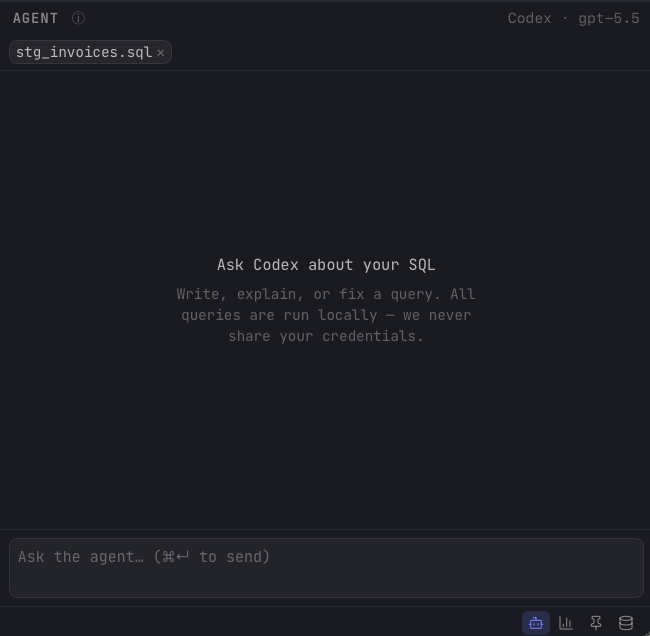
The agent reads your editor automatically, so you rarely have to paste code. Just under the header, Arris shows context chips for what it will send with your next message:
- File — the active editor tab, labeled with its file name (e.g.
stg_invoices.sql). The whole file is included. - Selection — when you have text highlighted, a second chip appears as selection · N lines and only that range is sent.
The chips update as you switch tabs or change your selection. Click the ×on a chip to drop it from the next message if you would rather not include that context. When a connection is active, the agent is also given your database schema and dialect(see Privacy) so the SQL it writes matches your tables and syntax.
Asking a question
Type into the box at the bottom (Ask the agent…) and press⌘↩ to send. The empty state sums up what it is for:“Ask the agent about your SQL. Write, explain, or fix a query.” Good prompts look like “write a query for the top 10 customers by revenue this quarter”,“explain what this CTE does”, or “why is this join returning duplicates?”
Each conversation is tied to the active connection, so switching connections gives you a separate thread, and follow-up messages continue the same provider session with full context of the exchange so far. Switching providers mid-thread starts a fresh session, since one provider cannot resume another's. While the agent is working, an animated indicator shows in the stream with a redStop button to cancel the turn. Replies arrive as a mix of prose, fenced SQL blocks, and collapsible cards for any tool steps the agent ran.
Working with replies
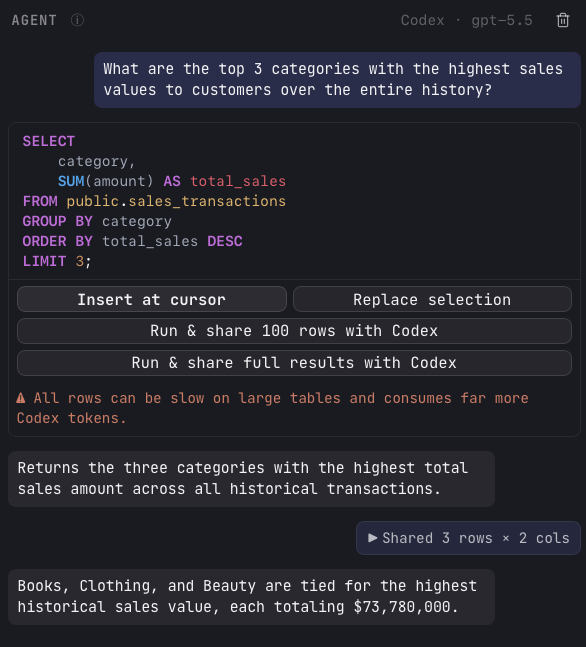
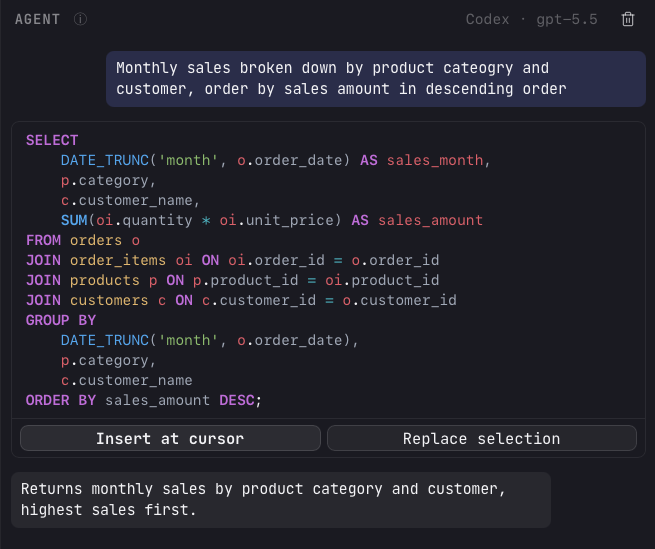
Every SQL block in a reply is rendered as a read-only, syntax-highlighted snippet with action buttons so you can move it into your editor without copy and paste:
| Action | What it does |
|---|---|
| Insert at cursor | Drops the SQL into the active editor at the cursor position and highlights what was inserted. |
| Replace selection | Swaps your highlighted text for the SQL. With nothing selected, it replaces the whole document. |
Nothing is written to your editor until you click one of these, and nothing runs on its own. You review the SQL, place it, and execute it yourself with ⌘↩ as usual.
Sharing query results
When a connection is active, each SQL block also offers to run itself and feed the output back to the agent, which is how you turn a one-shot answer into a back-and-forth:
- Run & share 100 rows, which runs the query locally and sends the first 100 rows back to the agent as the next message.
- Run & share full results, which sends the entire result set. Arris warns that “all rows can be slow on large tables and consumes far more agent tokens.”
You can also share a result you already have. After you run a query in the editor, anAdd results picker appears in the agent header listing the active tab's recent runs; pick one to attach its rows as a context chip on your next message. Like the editor and file chips, it is removable and sends only when you do, so nothing is shared automatically.